
Description
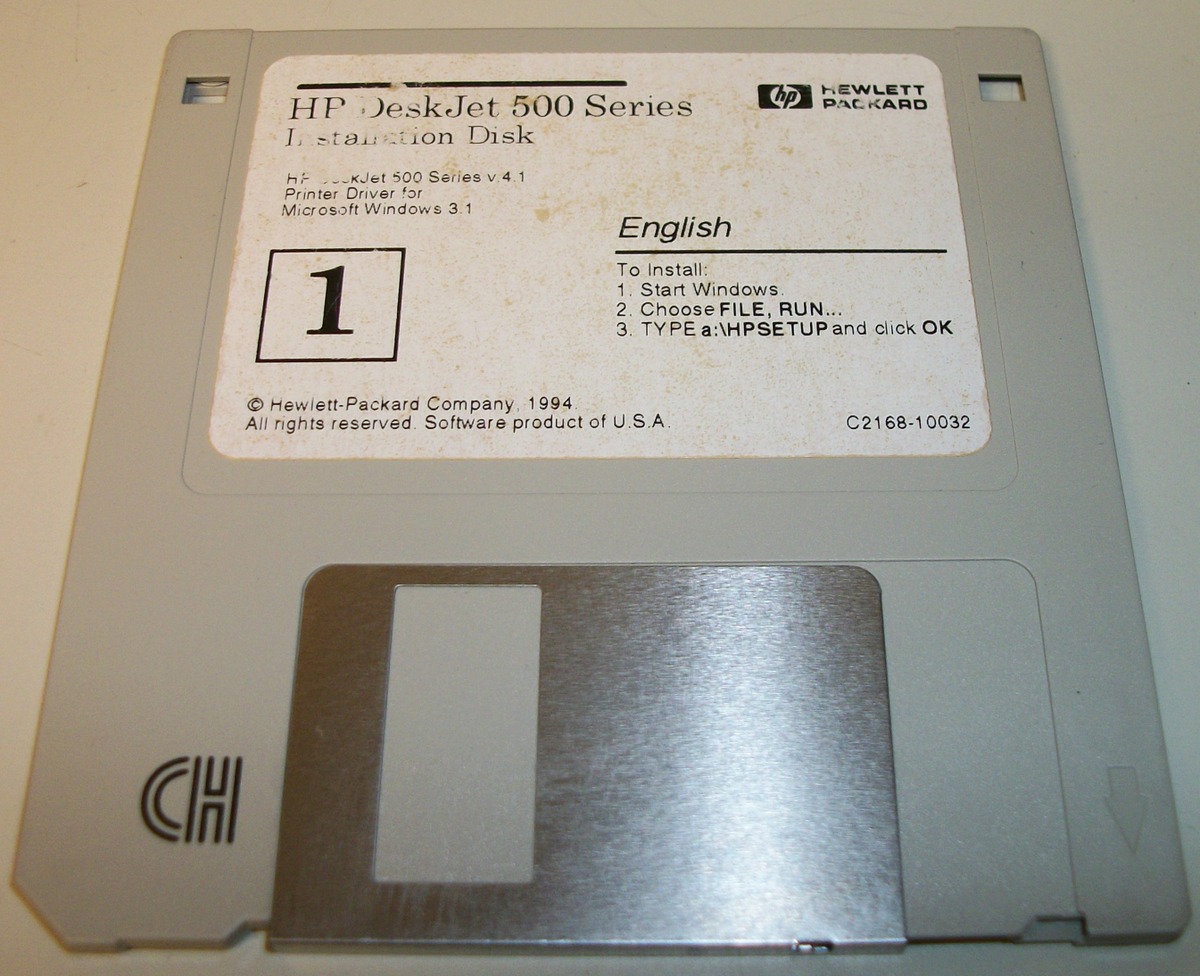
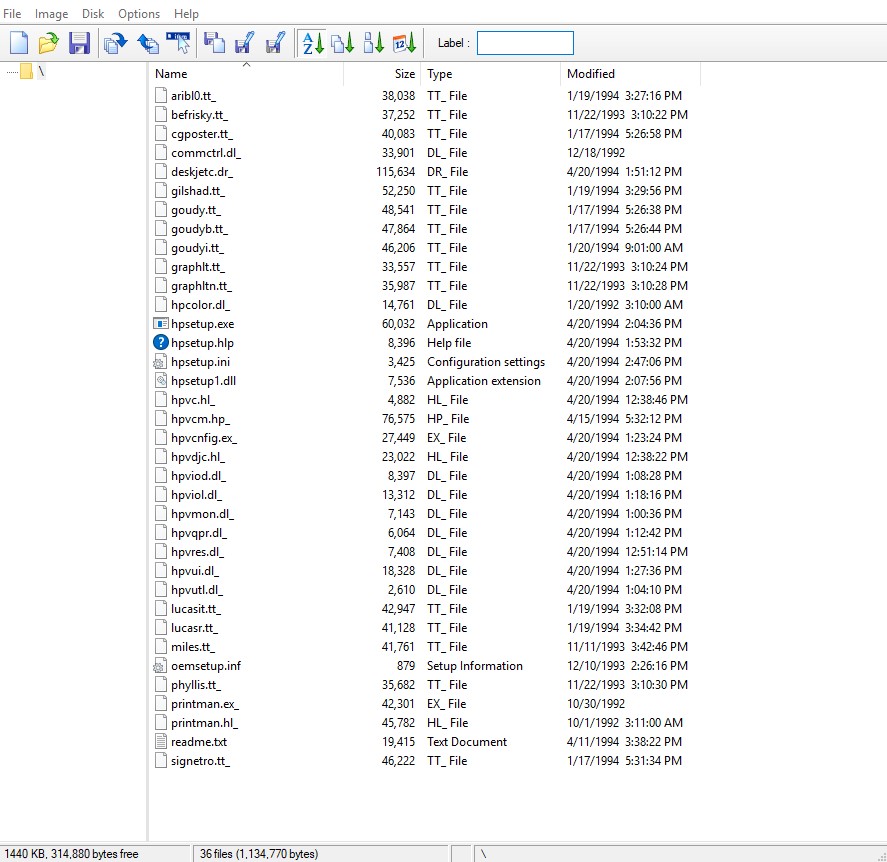
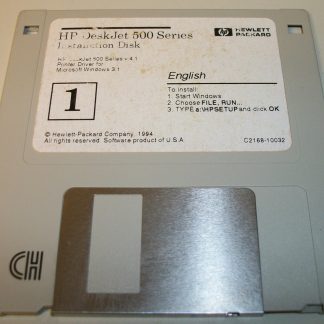
Up for sale is a download of an VFD (Virtual Floppy Disk) image of the original driver CD for HP DeskJet 500 Series Printers from April 1994. You get to download a VFD image of the diskette, Version 4.1 Printer Driver for Windows 3.1. You get a download of an image of the floppy diskette. Just download the .zip file, unzip it and either mount the image or copy it to your blank floppy diskette. We recommend using Winimage for manipulation of floppy image files. The download size of the .zip file is 998 KB (1,022,313 bytes), the uncompressed .vfd file size is: 1.40 MB (1,474,560 bytes) The download link is set to expire after 7 days
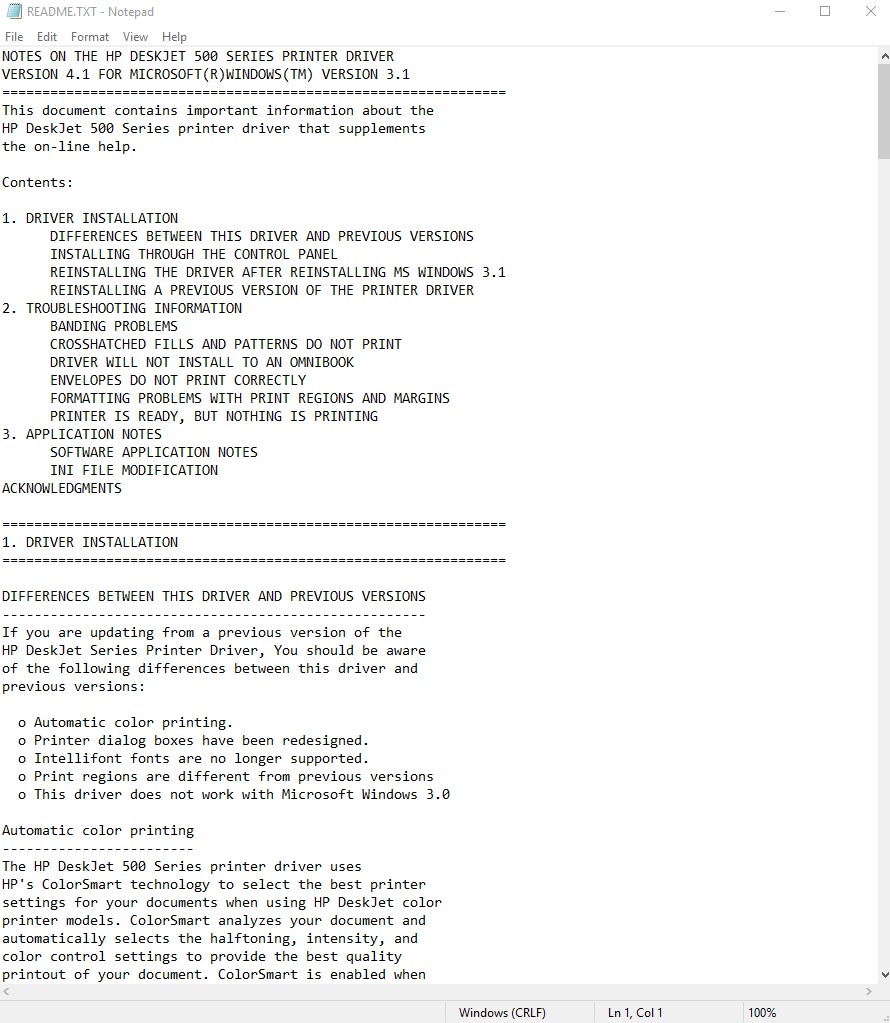
Here are the contents of the Readme file:
NOTES ON THE HP DESKJET 500 SERIES PRINTER DRIVER
VERSION 4.1 FOR MICROSOFT(R)WINDOWS(TM) VERSION 3.1
===============================================================
This document contains important information about the
HP DeskJet 500 Series printer driver that supplements
the on-line help.
Contents:
1. DRIVER INSTALLATION
DIFFERENCES BETWEEN THIS DRIVER AND PREVIOUS VERSIONS
INSTALLING THROUGH THE CONTROL PANEL
REINSTALLING THE DRIVER AFTER REINSTALLING MS WINDOWS 3.1
REINSTALLING A PREVIOUS VERSION OF THE PRINTER DRIVER
2. TROUBLESHOOTING INFORMATION
BANDING PROBLEMS
CROSSHATCHED FILLS AND PATTERNS DO NOT PRINT
DRIVER WILL NOT INSTALL TO AN OMNIBOOK
ENVELOPES DO NOT PRINT CORRECTLY
FORMATTING PROBLEMS WITH PRINT REGIONS AND MARGINS
PRINTER IS READY, BUT NOTHING IS PRINTING
3. APPLICATION NOTES
SOFTWARE APPLICATION NOTES
INI FILE MODIFICATION
ACKNOWLEDGMENTS
===============================================================
1. DRIVER INSTALLATION
===============================================================
DIFFERENCES BETWEEN THIS DRIVER AND PREVIOUS VERSIONS
—————————————————–
If you are updating from a previous version of the
HP DeskJet Series Printer Driver, You should be aware
of the following differences between this driver and
previous versions:
o Automatic color printing.
o Printer dialog boxes have been redesigned.
o Intellifont fonts are no longer supported.
o Print regions are different from previous versions
o This driver does not work with Microsoft Windows 3.0
Automatic color printing
————————
The HP DeskJet 500 Series printer driver uses
HP’s ColorSmart technology to select the best printer
settings for your documents when using HP DeskJet color
printer models. ColorSmart analyzes your document and
automatically selects the halftoning, intensity, and
color control settings to provide the best quality
printout of your document. ColorSmart is enabled when
you select Automatic Printout mode in the
Printer Setup dialog box.
Intellifont fonts
—————–
Previous versions of this driver included three
Intellifont typefaces. This version of the printer
driver does not support use of Intellifont fonts.
The equivalent typefaces in style can be obtained
by using the following scalable TrueType typefaces
provided with windows 3.1:
Intellifont Font Equivalent TrueType Font
—————- ————————
CG Times Times New Roman
Univers Arial
Courier Courier New
If you have existing documents formatted using
Intellifont fonts, the Windows operating system
will substitute equivalent TrueType fonts. This
may require minor reformatting for some existing
documents.
Print regions are different
—————————
The minimum margins using the HP DeskJet 500 Series driver
is 0.33 in. top and 0.67 in. bottom margins for all
printing modes. See the “Troubleshooting” section of
this README file for more information.
This driver does not work with Microsoft Windows 3.0
—————————————————-
The HP DeskJet 500 Series printer driver, Version 4.1,
does not support Microsoft Windows 3.0 or earlier
versions. Before installing this driver, you must
upgrade to Microsoft Windows 3.1.
NOTE: If you do install the driver in Windows 3.0 or
earlier versions through the Control Panel and
attempt to use the driver, an error message will
warn you that the driver will not run with that
version of Windows. You will have to reinstall a
previous version of the driver over the new
driver in order to use your printer.
INSTALLING THROUGH THE CONTROL PANEL
————————————
HP does not recommend installing the driver through the
Control Panel. this may result in incomplete installation.
If you have already installed your driver through the
Control Panel and are experiencing driver problems,
reinstall the driver using the HPSETUP.EXE program.
REINSTALLING THE DRIVER AFTER REINSTALLING WINDOWS 3.1
——————————————————
If you reinstall Microsoft Windows 3.1 after installing
the printer driver, reinstall the printer driver to
ensure correct printer operation.
Reinstalling a Previous Version of the Printer Driver
—————————————————–
When installing the HP DeskJet 500 Series printer driver,
the HPSETUP program enters a line in the [spooler] section
of WIN.INI. This line must be removed in order for an older
version of the HP DeskJet Series printer driver to work
correctly. Using an ASCII text editor such as NOTEPAD or
another editing program on your Computer, remove the
indicated line in the spooler section of the WIN.INI:
NOTE: Be sure to make a backup copy of your WIN.INI
file before editing in case you make an error
while editing.
[spooler]
.
.
.
qp.LPT1=hpvqpr.dll <--- REMOVE THIS LINE.
After changing the WIN.INI, restart Microsoft Windows.
===============================================================
2. TROUBLESHOOTING
===============================================================
BANDING PROBLEMS
----------------
When printing solid fills, Browns or other darker colors
may show banding. If this problem occurs, try printing in
Presentation Print Quality mode or Color Photo
Printout mode.
CROSSHATCHED FILLS AND PATTERNS DO NOT PRINT
--------------------------------------------
For many applications, printing crosshatching is not
supported in some printer modes. If you are having
problems printing crosshatching, try using Color Graphics
Printout mode with Pattern Halftoning or Black Text
Printout mode.
Driver will not install to an Omnibook
--------------------------------------
Omnibooks have a subset of Microsoft Windows. Windows
on Omnibooks do not have the file LZEXPAND.DLL in the
WINDOWS\SYSTEM directory. This file is required for
driver installation and is included in the WINDOWS\SYSTEM
directory on most desktop and laptop systems using
Microsoft Windows 3.1. Obtain a copy of the file and
put it in the WINDOWS\SYSTEM directory of your Omnibook
before installing the printer driver.
ENVELOPES DO NOT PRINT CORRECTLY
--------------------------------
Some applications print envelopes in the wrong orientation.
If you have problems, see the APPLICATION NOTES section
of this README file for solutions.
FORMATTING PROBLEMS WITH PRINT REGIONS AND MARGINS
--------------------------------------------------
The minimum margins using the HP DeskJet 500 Series
printer driver is 0.33 in. top and 0.67 in. bottom margins
for all printing modes. Previous versions of this
printer driver had minimum margins of 0.5 in. for both
top and bottom margins. You may need to reformat
documents created for previous versions of this driver
or restore the printer margins to the settings used in
previous versions of this driver.
To use the same print region as previous versions of the
HP DeskJet Series printer drivers, check the
"Print Region" check box in the INI Configuration
program. For instructions on using the INI Configuration
program, see the section on INI file modification
in this README file.
NOTE: With this change, text on printed pages
containing color will be shifted up from
what you see on your screen.
The printable area on a page using the HP DeskJet 500 Series
printer driver differs from the printable area allowed
by DOS applications.
Printer is ready, but nothing is printing
-----------------------------------------
The HP DeskJet 500 Series printer driver has an enhanced
error detection mode that detects printer error states
such as out of paper or wrong print cartridge installed.
This mode is only available when the printer is connected
directly to your computer (not a network) with a
Centronics parallel or RS-232-C serial cable.
If you have unresolvable hardware or software printing
conflicts, turn off enhanced error detection by checking
the Reverse Channel check box in the INI Configuration
program. See the "INI File Modifications" section in
this document for instructions on using this program.
If (1) the Print Manager is off, the printer's status
dialog shows no activity, and no error messages are
displayed; or (2) the Print Manager is running and
indicates that it is printing, but the printer is not
printing and no error messages are displayed, check
the following:
1. Make sure the printer setup dialog box caption
matches the printer model that you are using.
If not, reinstall the Printer driver, and select
the correct printer model.
2. Make sure the interface cable is connected
properly and securely.
3. Turn off enhanced error detection as described
previously in this section.
4. If the problem continues, try a new interface cable.
===============================================================
3. APPLICATION NOTES
===============================================================
SOFTWARE APPLICATION NOTES
--------------------------
At the time the HP DeskJet 500 Series printer driver
was released, the following software application
limitations existed:
ALDUS PAGEMAKER 5.0: You cannot cancel a
print job from PageMaker 5.0.
ALDUS PAGEMAKER 5.0: The HP Status Dialog box
is hidden behind the active PageMaker window.
ALDUS PAGEMAKER 5.0: Color pattern fills do
not always print with the correct pattern.
ALDUS PAGEMAKER 5.0: Documents created in
PageMaker 4.0 may not print correctly in
PageMaker 5.0.
BORLAND QUATTRO PRO 1.0: In Black Text mode,
graph backgrounds do not print.
COREL DRAW 4.0: Rotated graphic images will print
very slowly (printing can take 1 to 2 hours).
Select Color Graphics or Color Photo Printout mode
instead of Automatic mode when printing rotated
graphic images. The printer will print faster
in these modes.
COREL DRAW 4.0: Portions of printed output will
be rotated 180 degrees and enlarged. Exit Windows
and then restart Windows. Then try printing again.
HP Explorer: IF you have the HP Explorer software
for the HP LaserJet 4L running in background and
you attempt to print with an HP DeskJet 500 series
printer driver, you may get an error message
"Not Enough Memory To Print". To print with the
HP DeskJet 500 series printer driver, either
turn off the HP Explorer Software or add the
"/x" switch to the STAT4L.EXE command in your
AUTOEXEC.BAT file. The command should then read
STAT4L.EXE /x
Using the /x switch may increase the time it
takes for HP Explorer to "Pop Up."
LOTUS 1-2-3: Shading does not print correctly
with color backgrounds.
LOTUS 1-2-3: Line color may be wrong in some
Printout modes. Try printing with Color Graphics
Printout mode.
LOTUS AMI PRO 3.0: Background colors and
fill patterns may not print correctly.
LOTUS IMPROV 2.0: Images with scaling factors
greater than 100% will be clipped.
MICROSOFT EXCEL 4.0: Some light gray and gray
patterns do not print. Select a darker shade for
patterns.
MICROSOFT EXCEL 4.0: Sides of 3D charts print in
black instead of dark colors. Select Automatic or
Color Photo Printout mode to print in color.
MICROSOFT EXCEL 4.0: Some paths to the driver dialogs
do not work correctly and settings are not retained.
To reach a printer setup that works, select:
File, Page Setup, Printer Setup, Setup.
MICROSOFT POWERPOINT 3.0: Background pattern shading is not
uniform in Cluster and Pattern Halftoning modes. Select
Automatic Printout mode.
MICROSOFT POWERPOINT 3.0: A GP fault occurs when
printing if spooling with SuperQueue 3.02. Turn
SuperQueue off to print from Powerpoint 3.0.
MICROSOFT PUBLISHER 1.0: You cannot change print settings
from Microsoft Publisher 1.0. You must change print
settings through the Control Panel.
MICROSOFT PUBLISHER 2.0: Information at the bottom of
a page may be clipped. Increase the bottom margin of your
page to at least 0.67" or more from the paper edge.
MICROSOFT WORD 2.0: Envelopes print incorrectly for
the HP DeskJet 510, 520, 550C, and 560C. For these
models, select the following settings in Word:
1. Select "Page Setup" in the Format menu.
2. Set Size to "Envelope", Orientation to "Landscape",
Paper Source to First Page "Envelope", Other Pages
"Envelope".
3. Make sure that "Reverse Print Order" is turned off
in the Print Options in the Tools menu.
If changing these settings do not solve the problem,
try checking the "Word 2.0 Envelopes" check box in
the INI Configuration Program. For information, see
"INI File Modifications" in this README file.
MICROSOFT WORD (Versions 6.0 and earlier): Default footer
settings are outside the printable region. To move the
footer within the printable region, change the default
footer settings so that the footer is at least 0.67" or
more from the paper edge.
MICROSOFT WORD 6.0: The HP Status Dialog box is hidden
behind the active Microsoft Word window.
MICROSOFT WORD 6.0: When printing envelopes with the
HP DeskJet 500C, only 4 lines of text are printed in the
"Send To" address. If you need to print 5 lines, select
Black Text printout mode in the printer setup dialog
box. In Black Text mode, the printer will print 5 lines.
MICROSOFT WORD 6.0: The default envelope configuration
works for all printer models except the HP DeskJet 510
and 550C. For these two models, select the correct
orientation as follows:
1. Select "Envelopes and Labels" in the Tools menu.
2. Select "Feed".
3. Select "Face Down", make sure "Clockwise Rotation"
is NOT checked, and select the third icon from the
right.
MICROSOFT WORKS 2.0A: Pie charts print with the wrong
colors in several printout modes. Print with Color
Graphics Printout mode with Pattern Halftoning.
MICROSOFT WORKS 3.0: Charts print incorrectly in several
printout modes. Print with Color Graphics Printout mode
with Pattern Halftoning.
MICROSOFT WORKS 3.0 (U.S. Version): (for HP DeskJet 520,
and 560C printers) When envelopes are loaded in the
correct orientation, the envelopes print with text
rotated 180 degrees (addresses are upside-down).
To correct this problem, add the following
[Envelope] section to the MSWORKS3.INI file.
[Envelope]
Options=1
HP DeskJet 520=1
HP DeskJet 560C=1
This will change the orientations assumptions for envelope
printing.
MICROSOFT WRITE 3.1: (HP DeskJet 510, 520, 550C, and 560C)
When printing envelopes, the left and right margins
are switched with each other. If clipping occurs when
printing envelopes, switch the left and right margin
settings.
SPC HARVARD GRAPHICS 1.021: Pie slices print as rectangles.
WORDPERFECT 5.1: Envelopes print in the wrong
orientation for the HP DeskJet 500 and 500C printers.
WORDPERFECT 6.0: Underlining and strikethrough for color
text does not print in Black Text mode.
WORDPERFECT 6.0: WordPerfect reads the minimum print
margins only when it is first started. These margins
are determined by the paper size and orientation
settings in the driver. If you are unable to set the
margins to the minimum values for the printer,
exit WordPerfect and make sure that the correct
paper size and orientation settings are set
in the driver through the Windows Control Panel.
Then restart WordPerfect.
WORDPERFECT 6.0: Envelope printing for the HP DeskJet 500
and 500C does not work correctly. To print envelopes, do
the following:
1. Create a new paper definition and name it.
2. Check "Wide Form" and make sure "Rotated Text" is
NOT checked.
3. To print an envelope, select the Paper Size you
created before printing.
ZENOGRAPHICS SUPERQUEUE 3.01: When printing PageMaker 4.0
documents in PageMaker 5.0, If the message "Fail to print"
is displayed, turn off SuperQueue and reprint the document.
ZENOGRAPHICS SUPERQUEUE 3.01: If you get the error
message "SuperQueue cannot continue-disk may be full"
when printing TIF graphics, turn off SuperQueue and
reprint the document.
ZENOGRAPHICS SUPERQUEUE 3.01: When printing a
Microsoft Word document with HP DeskJet 500 Series driver
and SuperQueue is enabled, the HP DeskJet 500 Series driver
status dialog pops up to the front when SuperQueue starts
printing. Click on the application behind the dialog to
continue working.
INI FILE MODIFICATIONS
----------------------
CAUTION: Do not change any settings in your *.INI files
unless specifically instructed to in this
README.TXT to resolve an application or printing
problem. changes to *.INI files may adversely
affect your printing system.
For some application problems, the solution may involve
modifying your DESKJETC.INI, WIN.INI, or MSPUB.INI file.
The HPVCNFIG.EXE file located in your WINDOWS or
WINDOWS\SYSTEM directory provides an easy method for
modifying control values in your *.INI files. To modify
your INI files, do the following steps
1. Run the HPVCNFIG.EXE file from the Program Manager
or File Manager.
A dialog box will be displayed with a list of
check boxes.
2. Check the check box specified in the software
application note for your application problem.
3. Click the OK Button.
The HPVCNFIG configuration file will modify the
appropriate control values in your *.INI files.
NOTE: You must reboot Windows for the changes you have
made to take effect. Make sure that you close all
open documents before rebooting Windows.
===============================================================
ACKNOWLEDGMENTS
===============================================================
ColorSmart is a trademark of Hewlett-Packard Co.
Scalable type outlines are licensed from Agfa Corporation
and Monotype Corporation.
Intellifont is a registered trademark of Agfa-Gevaert.
CG Times, a product of Agfa Corporation, is based on Times New
Roman under license from Monotype Corporation plc.
Agfa is a registered trademark of Agfa-Gevaert AG.
Univers is a trademark of Linotype AG and/or its subsidiaries.
Microsoft is a U.S. registered trademark of Microsoft Corporation.
PageMaker is a U.S. registered trademark of Aldus Corporation.
Windows is a trademark of Microsoft Corporation.
Reviews
There are no reviews yet.